Test Plans
Test Plan defines the scope, structure, and execution model of a run. It helps teams clearly understand which tests will be executed, how they are grouped, and how results will be reported.
In Testomat.io, Test Plans allow you to organize tests, control how they are executed (manually, automatically, or both), and keep test results consistent and transparent for all stakeholders.
The Plans page is the central place where you create, manage, and organize all test plans. From here, you can:
- Filter by label – Narrow down plans by labels for better organization
- Search – Quickly find plans by name
- + New plan – Create Manual, Automated, or Mixed plans
- Multiselect – Select multiple plans to apply bulk actions
- Filter by type – Narrow down plans by types (Manual, Automated, Mixed, or Generated)
- Labels – Assign or remove labels to one or multiple plans
- Link to Issue – Link plans to issues individually or in bulk
- Delete – Remove one or multiple plans using multiselect
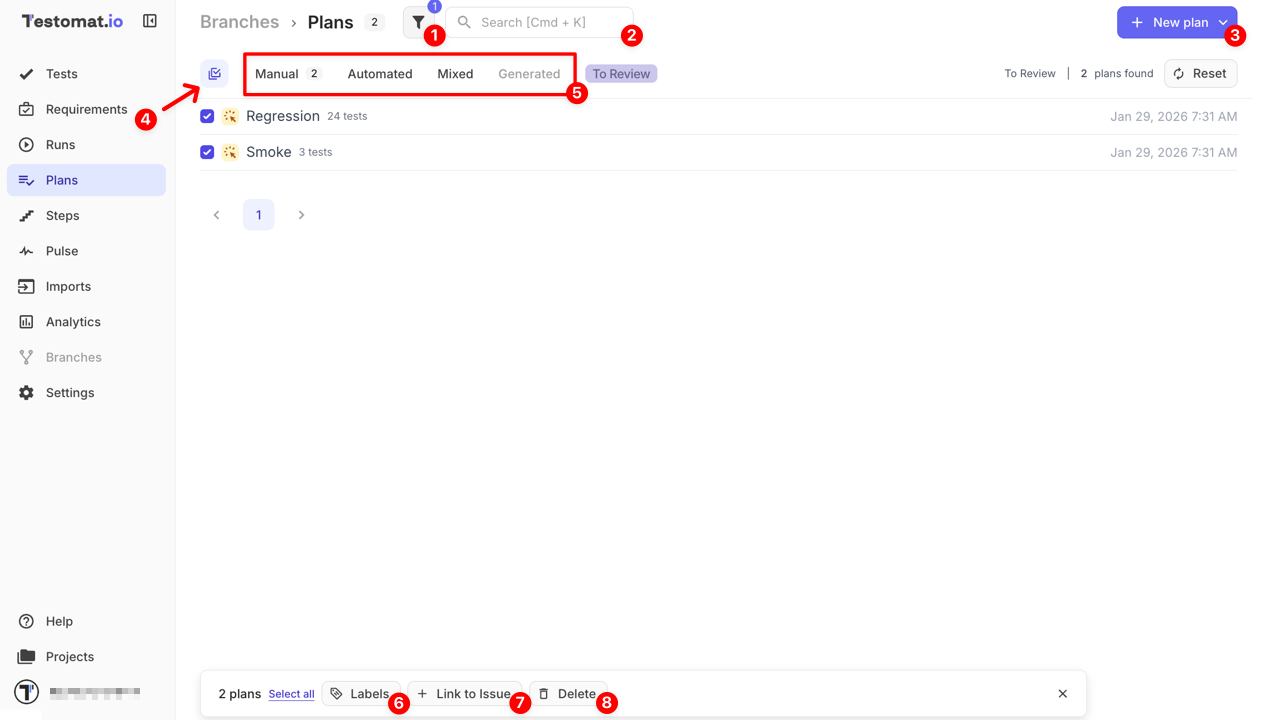
This overview helps you quickly navigate, filter, and manage test plans before working with plan details and runs.
Types of Test Plans
Section titled “Types of Test Plans”Testomat.io supports three main types of test plans. Each type is designed for a specific testing goal and execution model. Choosing the right plan type depends on how your tests are executed and how results should be reported.
- Manual – for executing tests manually and reporting results from the UI
- Automated – for running automated tests via CI or CLI and reporting results automatically
- Mixed – for combining manual and automated tests in a single plan and report
Below, we’ll walk through each plan type and explain how and when to use it.
Manual Plans
Section titled “Manual Plans”Manual Plans are designed for tests that are executed manually by testers.
They are typically used when:
- Tests require human validation or judgment
- Exploratory or usability testing is performed
- Manual regression or acceptance testing is needed
Add Automated Tests as Manual
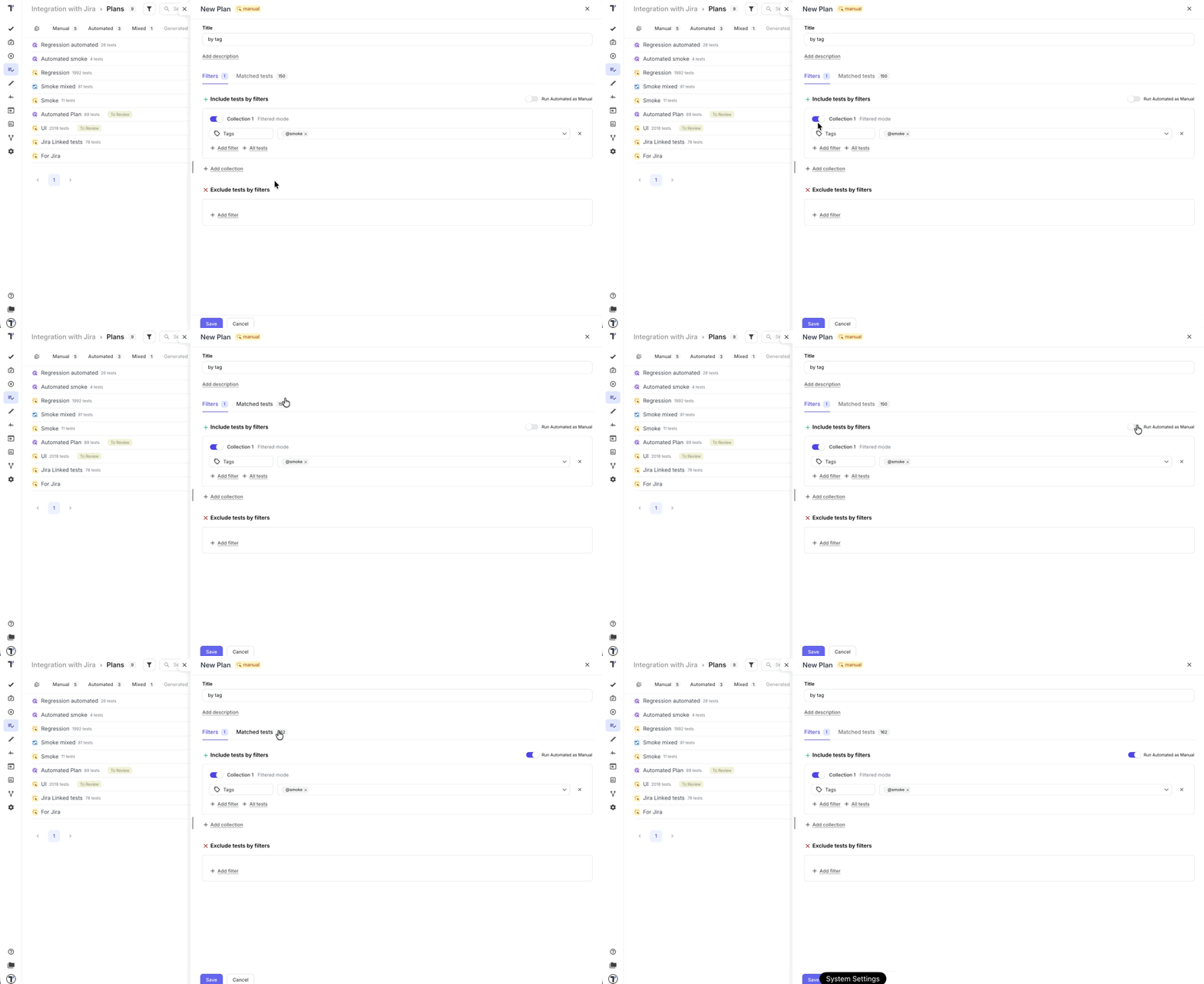
Section titled “Add Automated Tests as Manual”Manual Plans include an optional toggle: Run Automated as Manual.
When enabled:
- Automated tests can be added to a Manual Plan using the same selection logic as manual tests (test tree, folders/suites, or filters)
- These tests are executed manually, and test run statuses (Passed / Failed / Skipped) are assigned manually during the run
When disabled:
- Automated tests are not selectable
This toggle is the only exception to the strict plan-to-test-type mapping.
Automated Plans
Section titled “Automated Plans”Automated Plans are designed for running automated tests and sending their results to Testomat.io.
They are typically used when you:
- Want to run a fixed or predefined set of automated tests
- Execute tests automatically via a Continuous Integration (CI) service or from CLI
- Need tests to run regularly (e.g., nightly, on every commit, or before a release)
- Want test results reported automatically, without manual intervention
With Automated Plans:
- Only automated tests can be added to the plan
- Test execution is triggered via a CI pipeline or CLI command
- Execution results are sent automatically to Testomat.io
To use an Automated Plan:
- Tests must have IDs
- IDs can be generated using the
--update-idsoption during test import - Each plan has a Plan ID, which can be used to run this specific collection of tests
For example,
TESTOMATIO={API_KEY} npx @testomatio/reporter run 'actual run command' --filter 'testomatio:plan={Plan_ID}'
{API_KEY}– your Testomat.io Reporting API key{Plan_ID}– ID of the plan you want to run'actual run command'– your test framework command (e.g.,npx codeceptjs)
How to Launch an Automated Run from a Plan
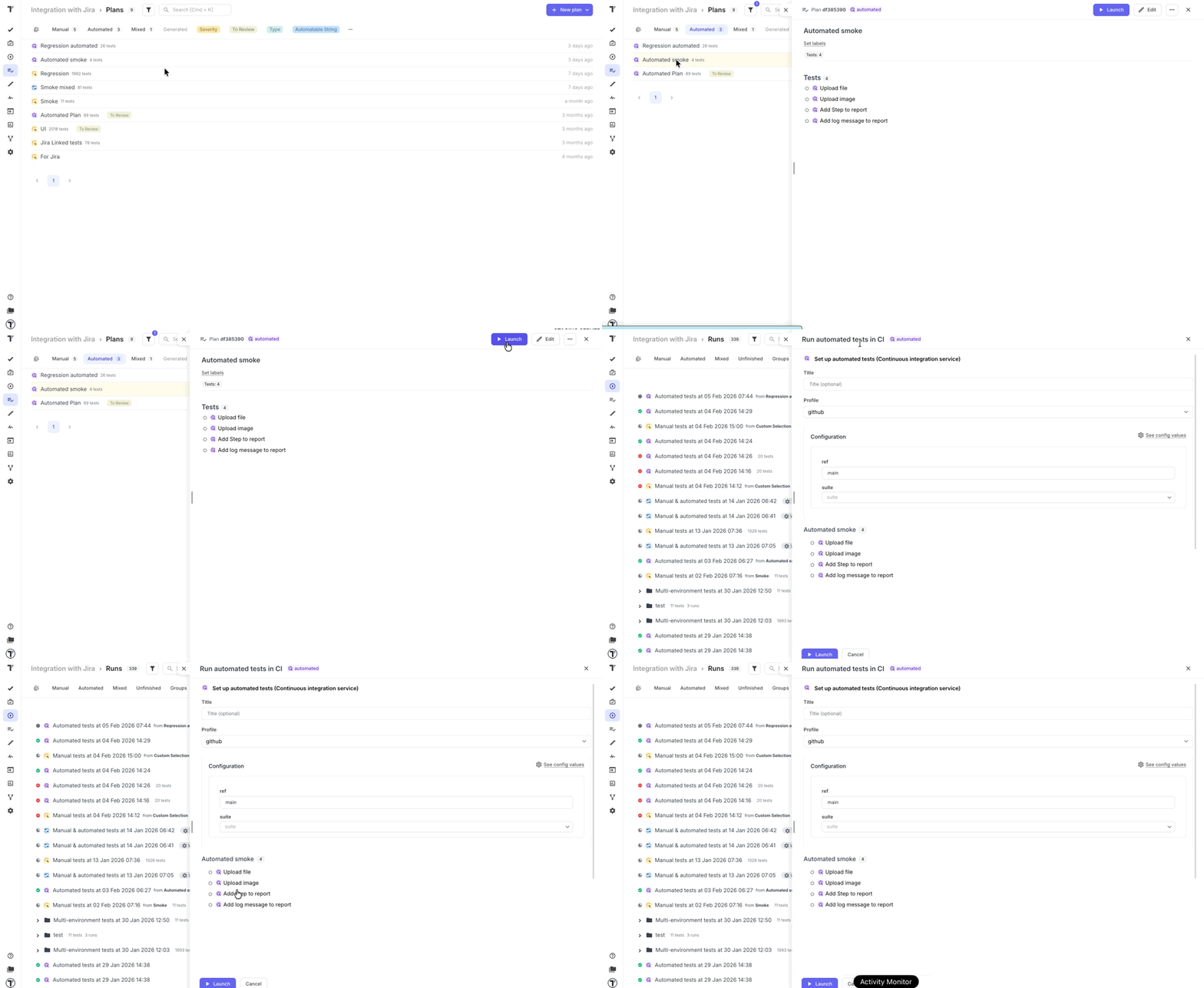
Section titled “How to Launch an Automated Run from a Plan”Once your Automated Plan is created, you can start an automated run from the ‘Plans’ page.
If you want to run tests automatically on a CI service:
- Go to the ‘Plans’ page
- Open your Automated Plan
- Click the ‘Launch’ button → you will be redirected to the Runs page
- A new run ‘Run automated tests in CI’ will be triggered in the sidebar
Mixed Plans
Section titled “Mixed Plans”Mixed Plans combine both manual and automated tests in a single plan.
They are typically used when you:
- Include automated tests that run via CI or via CLI
- Have other tests that still require manual execution
- Want a single report for the entire testing scope
With Mixed Plans:
- Both manual and automated tests can be added in the same plan
- Automated tests can be executed via CI or triggered via CLI
- Manual tests are executed manually
- Results from both test types are combined into a single run report
This makes Mixed Plans suitable for flexible or transitional testing strategies.
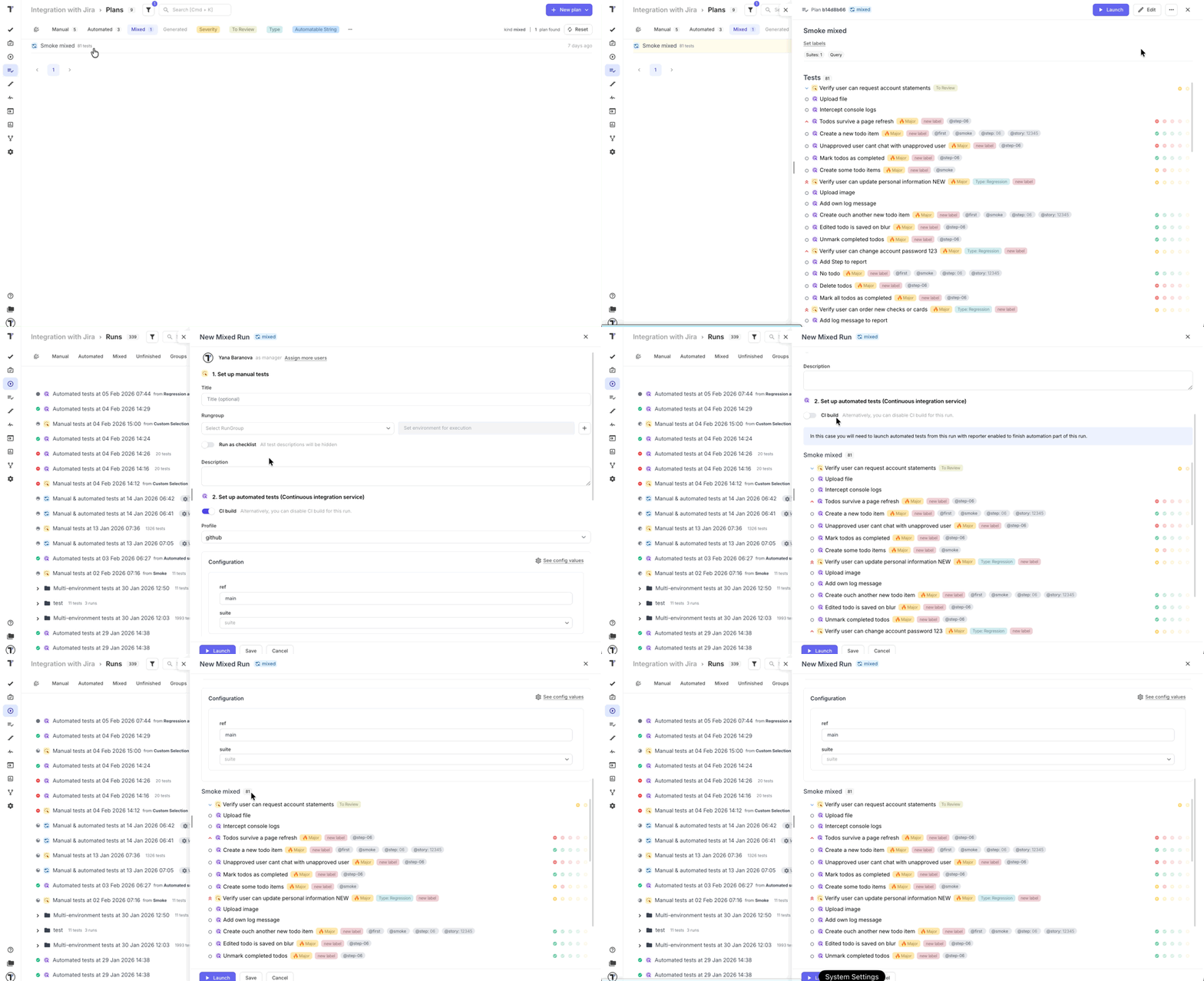
How to Launch a Mixed Run from a Plan
Section titled “How to Launch a Mixed Run from a Plan”Once your Mixed Plan is created, you can start a run directly from the ‘Plans’ page. When triggered:
- Go to the ‘Plans’ page
- Open your Mixed Plan
- Click the ‘Launch’ button → you will be redirected to the Runs page
- A new run ‘New Mixed Run’ will be triggered in the sidebar
- You can choose whether to enable or disable CI build for this run
How to Create a New Plan
Section titled “How to Create a New Plan”Common Flow for All Plan Types (Including All Tests)
Section titled “Common Flow for All Plan Types (Including All Tests)”Before selecting test cases for any plan, the creation process follows the same initial steps for all plan types:
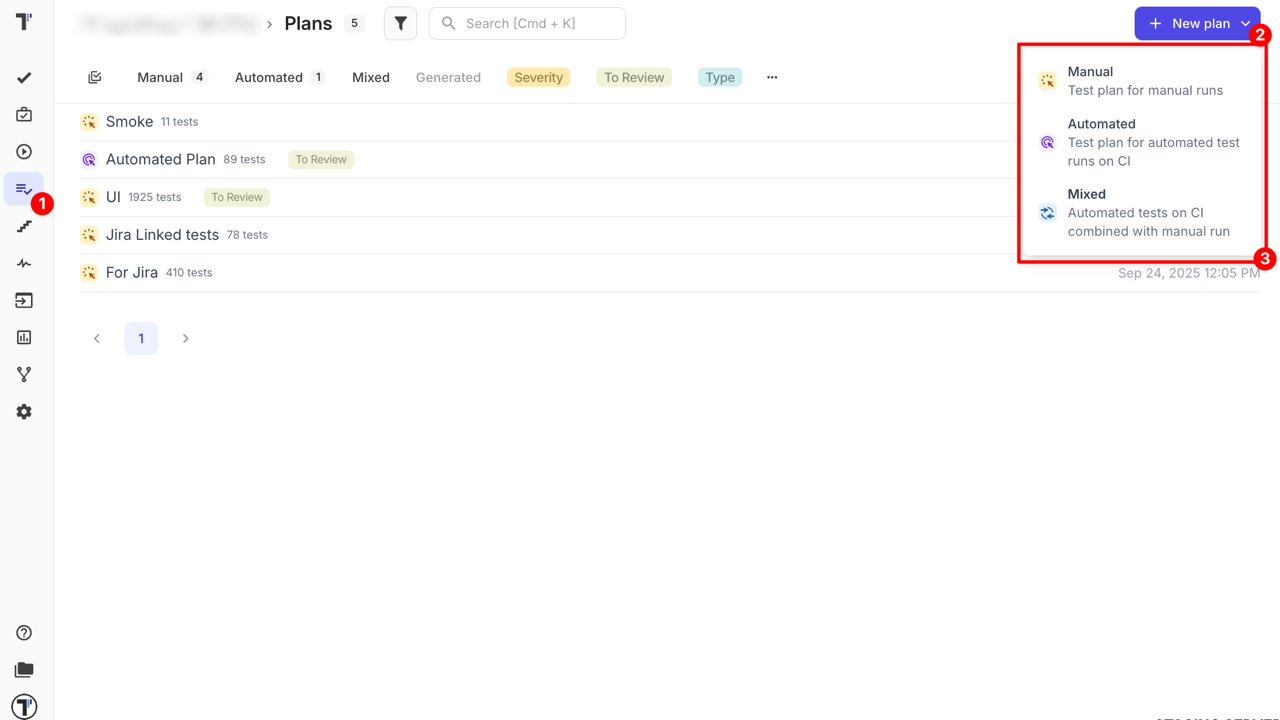
- Go to the ‘Plans’ page
- Click the ’+ New plan’ dropdown
- Choose one of the following options from the dropdown:
- Manual
- Automated
- Mixed
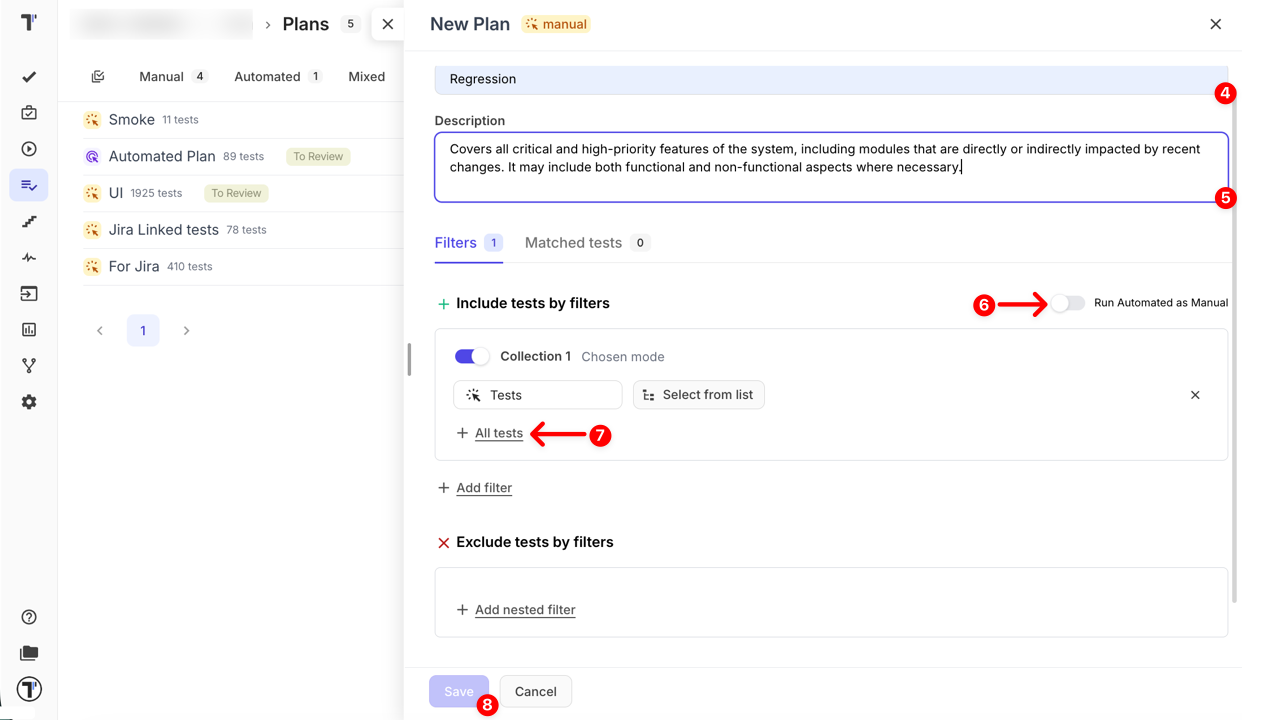
- Enter a Title (required)
- Add a Description (optional)
The description helps clarify the plan’s purpose, scope, and objectives. It can also be viewed later in the plan details or when inspecting Runs.
- Enable the ‘Run Automated as Manual’ toggle (optional)
- Click the ’+ All tests’ button, then confirm
- Click the ‘Save’ button
How to Work with Test Collections
Section titled “How to Work with Test Collections”| Feature / Action | Description | Notes / Logic |
|---|---|---|
| Enable/Disable collection | Toggle to show/hide tests in the collection | No restrictions |
| Add filter | Adds filters within a collection | AND logic is applied between filters inside a single collection. Cannot add any filters in a collection where Tests are already selected To use filters, apply different filters or create another collection |
| Delete filters | Removes filters from the collection | If the last remaining filter is removed while the collection toggle is enabled, all tests are included in the collection. Removing one of multiple filters works as expected |
| All tests | Includes all tests in the collection | All tests are included in the collection; removes any active filters |
| Add collection | Adds a new collection with its own filters | Allows combining different sets of filters across collections; OR logic applies between collections |
| Delete collection | Deletes the collection | Removes the collection along with all its filters. The first (default) collection cannot be deleted |
Filter-based selection
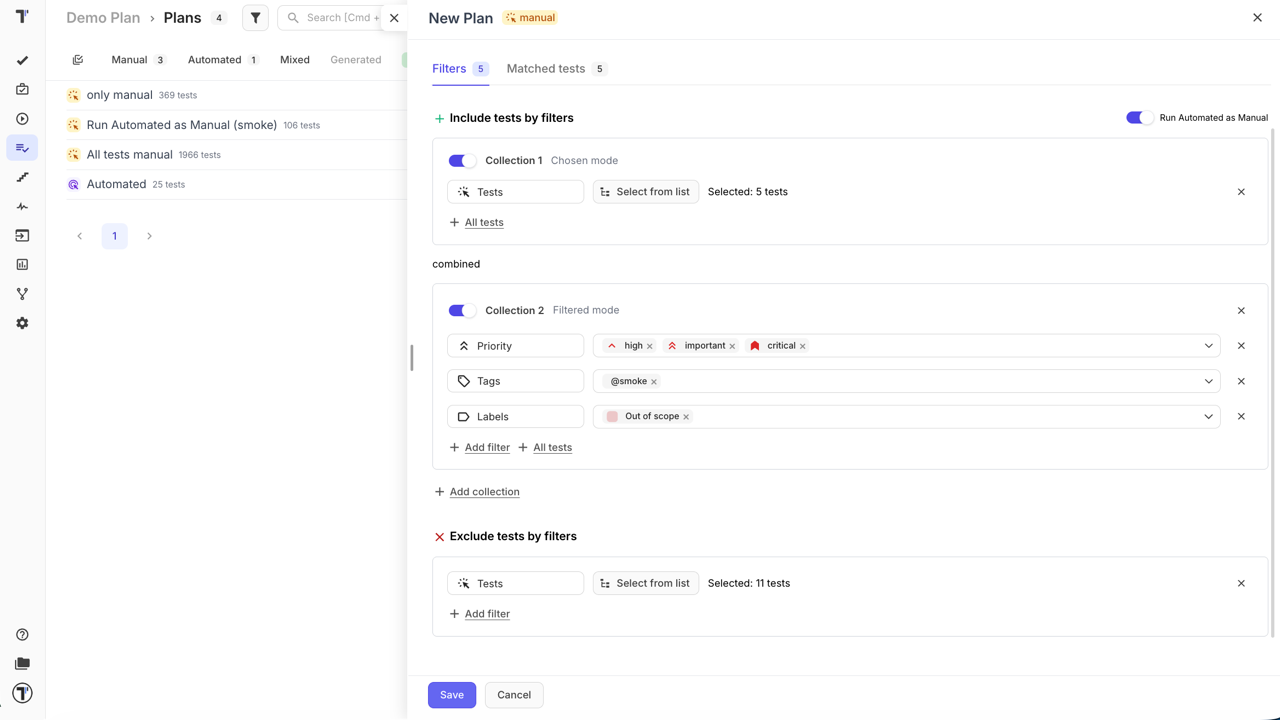
Section titled “Filter-based selection”Filters allow you to dynamically include or exclude tests in a plan based on metadata. Adding or removing tests via filters directly affects the plan, not just the collection.
Include Tests by Filters
- Adds tests to the collection and the plan that match any of the selected filters
- Supported filters for Include:
- Suites & folders
- Tags
- Priority
- Assignees
- Labels
- Custom labels
- Query
- Logic: AND within a collection, OR between collections
- All tests selected by the filters are displayed in the Matched tests tab
Exclude Tests by Filters
- Removes tests from the collection and the plan that match selected filters
- Supported filters for Exclude:
- Suites & folders
- Query
- Works in combination with included tests, respecting the same OR/AND logic.